
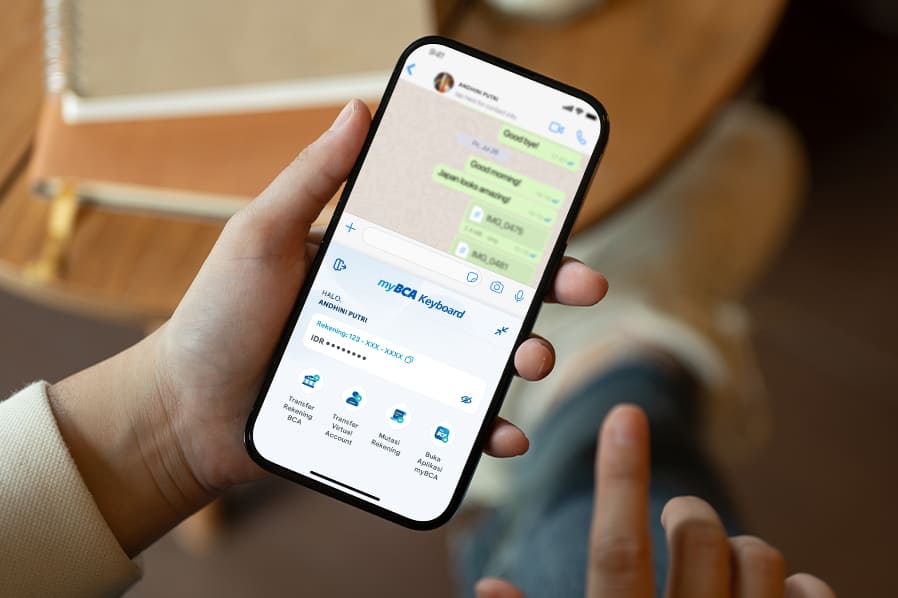
Are you in the middle of a fun chat with friends or scrolling through social media, then suddenly remember you need to make a transfer or check your balance? No need to switch to a banking app! myBCA has myBCA Keyboard! This feature allows various banking transactions to be done directly from your phone's keyboard. Transactions become easy, as easy as chatting!
What exactly is myBCA Keyboard?
It's pretty cool! myBCA Keyboard lets you do your banking directly from the keyboard on your phone. That means no more bouncing back and forth to the myBCA app just to check your balance, share your account number, or even send money to another BCA account or a BCA Virtual Account. Super handy, right?
Key Features of myBCA Keyboard That Make Life Simpler:
- Check Balance & Account History
Want to know your remaining balance? Or see your account's transaction history? Just check directly from myBCA Keyboard, no hassle!
- Send Account Number
Need to share your account number with friends or family? Just click from myBCA Keyboard, and it's done!
- Transfer Between BCA Accounts
Want to send money to fellow BCA accounts? Easy, just transfer from myBCA Keyboard.
- Transfer BCA Virtual Account
Paying bills or online shopping using a BCA Virtual Account? You can directly transfer from myBCA Keyboard too!
How to Activate myBCA Keyboard?
Let’s activate your myBCA Keyboard and feel the convenience:
- Log in to the myBCA app.
- Tap the Settings icon in the top right corner.
- Select myBCA Keyboard and tap Continue.
- Tap Activate Now to go to your phone’s keyboard settings
- For Android users, turn on the myBCA Keyboard toggle.
- For iOS users, turn on the myBCA Keyboard toggle and enable Full Access to use the banking features on the keyboard.
- Return to the myBCA app, and a confirmation message will appear once the myBCA Keyboard is active!
How to Transact Using myBCA Keyboard?
Here's How!
Once myBCA Keyboard is active, it can be used for various transactions:
It's so easy, right? Various banking transactions using myBCA Keyboard! Let’s try it now and enjoy the convenience!


