
*Update : 13 August 2025
The digital era has become a challenge for the banking industry to continue innovating. Technology savvy customers need optimal services, be it to fulfill their daily necessities and to enjoy available banking products.
myBCA answers those challenges.
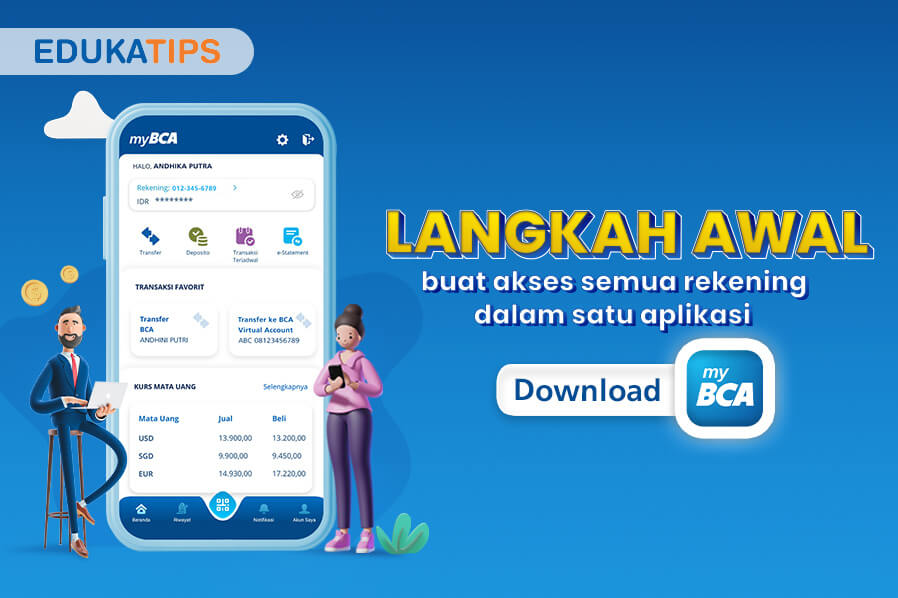
If you did not know yet, myBCA is the latest digital platform facility from BCA connecting your account numbers, savings, and investment portfolios into one access. You can access myBCA through a smartphone app and desktop website.
You need a BCA ID account to log in and enjoy all myBCA features. BCA ID is a BCA user ID you can create and use to access myBCA.
For you who doesn't have BCA ID, don't worry, you can create BCA ID via myBCA.
Now you can access the myBCA application by using a Finger Scan or Face ID. Here's how to activate it:
- Enter myBCA then enter the Settings menu

- Slide the toggle “Masuk dengan Biometrik”

- Check the approval column, then click the Continue button

MyBCA access with biometrics will be compatible with each gadget. There are 2 options, namely using fingerprints (Finger Print) or using face detection (Face Recognition)

What features does myBCA have?
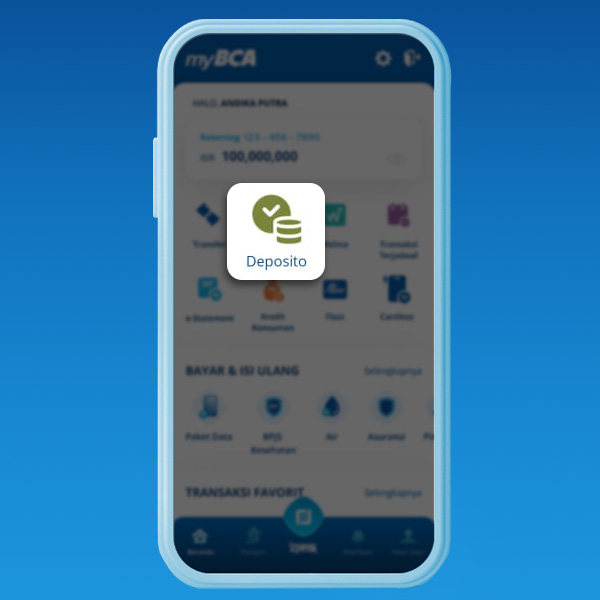
With myBCA e-Deposito feature, you can open a deposit while relaxing at home. Follow these steps to easily open an account:
- Select “Deposito”
- Select “Pembukaan Rekening”
- Fill in Penempatan Awal
- Choose Jangka Waktu
- Choose Jenis Deposito
- Confirm Deposito
- Enter PIN for verification
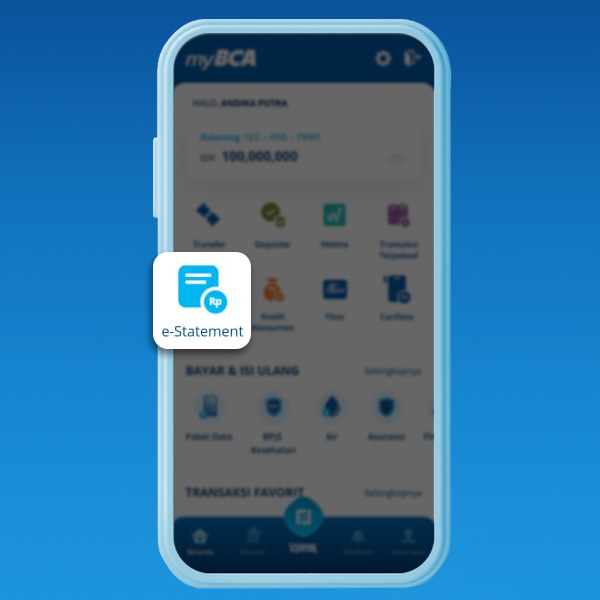
Checking your account mutation using your phone can be done via myBCA with e-Statement feature. Check out the following steps:
- Select “e-Statement”
- Select Rekening
- Choose Periode that you want
- e-Statement will be displayed according to the time period you chose
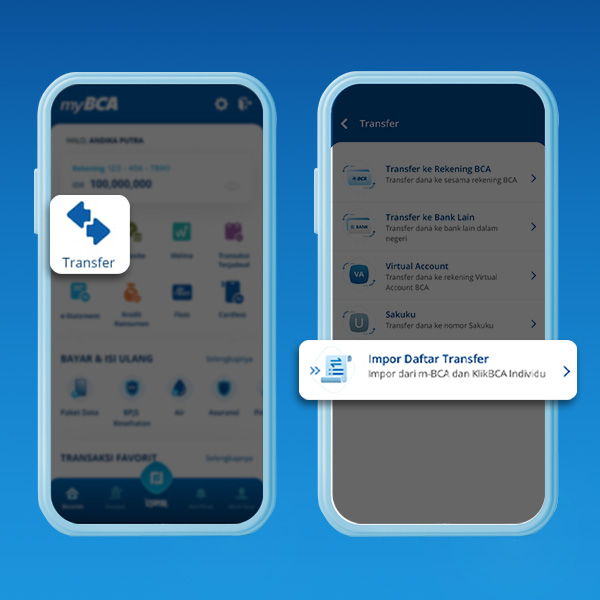
Do not bother to move your transfer data manually. With myBCA, importing transfer data from m-BCA or KlikBCA can be done using Impor Daftar Transfer feature. Check out how:
- Select “Transfer”
- Select Impor Data Transfer
- Click Impor Daftar
- Press “Ya”
Download myBCA app now from your smartphone and get a better and simpler banking experience with myBCA. Share this information with your friends!


