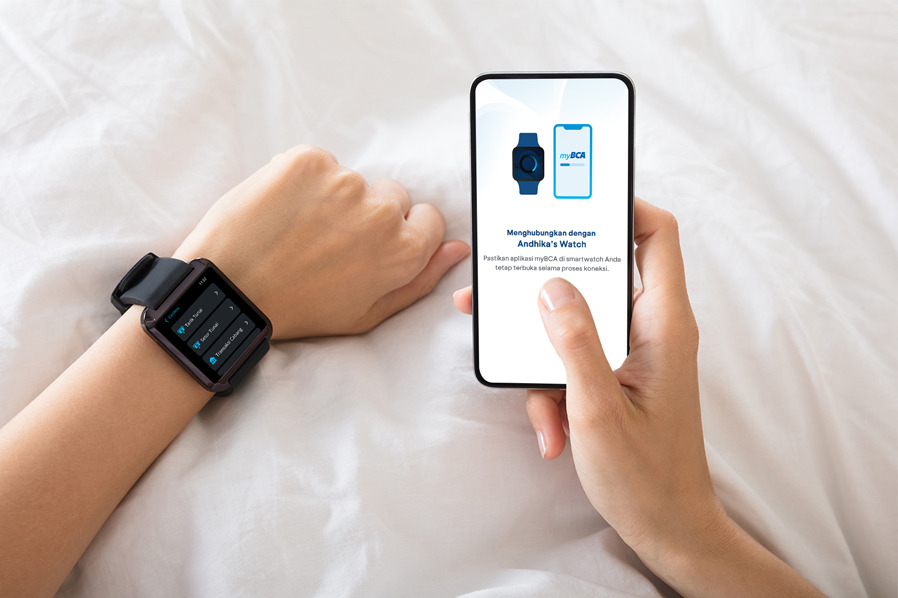
Now you can access myBCA directly from your smartwatch. Introducing myBCA on Smartwatch. This innovative banking solution allows you to manage transactions directly from a smartwatch connected to the internet.
By connecting myBCA to your smartwatch, you can access various features such as checking balance info, e-statement, and making transactions with cardless and QRIS features. Make sure the smartwatch you are using has a minimum Operating System of (Apple) WatchOS 8.0 or (Google) WearOS 3.0.
How to Connect myBCA on Smartwatch
To connect myBCA to your smartwatch, ensure the following:
Turn on Bluetooth on your phone, and ensure your smartwatch is connected to the phone.
myBCA app is already downloaded on your smartwatch. Download myBCA on your smartwatch via the App Store (iOS) or Play Store (Android).
Ensure myBCA is open on your smartwatch before connecting it to your phone.
Here’s how to activate the connection with myBCA on your smartwatch:
Open myBCA on your smartwatch
Log in to myBCA via your mobile phone
Go to Settings
Select Smartwatch Connection, and click Continue
Click Connect Now
Return to myBCA on your smartwatch and click Make Connection
On your phone, select the smartwatch you want to connect to
Read and agree to the Smartwatch Connection Terms, then enter your PIN
Your smartwatch is now successfully connected
Features of myBCA on Smartwatch
As long as your smartwatch is connected to the internet and linked to myBCA, you can access the following features:
Account Balance
To view your balance:
Log in to myBCA via your smartwatch
Select Balance Info
Choose the account you wish to check
Your balance will appear
Transaction History
To view your incoming and outgoing transactions:
Log in to myBCA via your smartwatch
Select Transaction History
Choose the account you want to check
Your transaction history will be displayed
Cardless
Make cash deposits, withdrawals, or transactions at BCA Branches without a card (cardless)
Cash Deposit:
Log in to myBCA via your smartwatch
Choose Cardless
Choose Cash Deposit
Select the destination account
Check the transaction details and click Continue
Enter your transaction PIN
A transaction code will appear. Continue the transaction at the nearest BCA ATM
Select Cardless Transaction menu
Cash Withdrawal:
Log in to myBCA via your smartwatch.
Choose Cardless
Choose Cash Withdrawal.
Select the source account
Select amount.
Check the transaction details and click Continue.
Enter your transaction PIN
A transaction code will appear. Continue the transaction at the nearest BCA ATM
Select Cardless Transaction menu
Branch Transactions:
Log in to myBCA via your smartwatch.
Choose Cardless
Choose Branch Transaction.
Enter your transaction PIN.
A transaction code will appear. Continue the transaction at the nearest BCA Branch.
To review transaction codes you’ve created, select Transaction Code List in the menu.
Show QRIS Bayar
For payment transactions showing QRIS Bayar:
Log in to myBCA via your smartwatch
Select QRIS
Choose the source account
Enter your transaction PIN
Show the QRIS code on your smartwatch to the merchant for scanning
Payment successful
NFC Pay
QRIS Tap payments with NFC Pay are currently only available on smartwatches running the (Google) WearOS operating system. To use the NFC Pay feature:
Log in to myBCA via your smartwatch
Select NFC Pay
Choose the source account
Tap smartwatch to EDC machine for payment
Payment successful
How to Manage myBCA Connection with Smartwatch
You can enable or disable financial features (Cardless and QRIS CPM) in myBCA on your smartwatch with these steps:
How to Set Up Financial Feature Access
Login to myBCA via mobile phone
Go to Settings
Select Smartwatch Connection
Turn off or turn on the Financial Feature Accesstoggle
How to Remove the Smartwatch Connection
If you no longer wish to use the myBCA connection on your smartwatch, follow these steps to remove it:
Using Your Mobile Phone
Login to myBCA via mobile phone
Go to Settings
Select Smartwatch Connection
Select Remove Connection and click Yes
The smartwatch connection with myBCA has been removed
Using Your Smartwatch
Log in to myBCA via your smartwatch
Select Remove Connection
click Remove
The smartwatch connection with myBCA has been removed
Start using myBCA on your smartwatch now for a more convenient banking experience. To enjoy other features on myBCA, you can download it here: