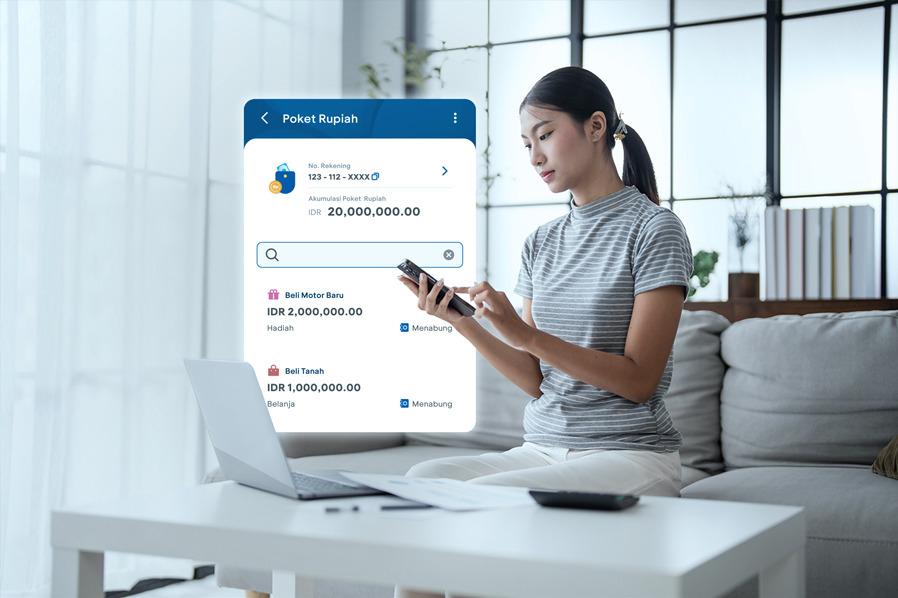
There are many ways to budget and manage your finances. One of the most common methods is the envelope method, where you separate and allocate funds based on categories. This way, you always know exactly how much money is available for each category and make your transactions more accurate.
In the past, this method involved using physical envelopes filled with cash. But now, you can apply the same budgeting system digitally in myBCA using the Rupiah Pocket feature.
Start Managing Your Finances by Creating Rupiah Pocket in the myBCA App
Rupiah Pocket is a pocket savings feature in myBCA that lets you separate funds from your main account into dedicated pockets, making budgeting much easier. Funds stored in Rupiah Pocket do not incur any additional fees, and you can personalize each pocket’s name, category, initial deposit, and savings target. You can also lock the pocket so the funds cannot be used for transactions, yet still withdraw them anytime without penalties if needed. Furthermore, each account can have up to 100 pockets, giving you flexibility to manage your money according to different needs. To create a Rupiah Pocket, follow these steps:
How to Create a Rupiah Pocket
Login to myBCA
Choose Rupiah Pocket under the Pocket section
Tap Create Now
Tap Create New Pocket, and then Next
Select your Main Account and set the Pocket Name, Category, Initial Deposit (optional), and Target (optional)
Activate Regular Autodebet Deposit toggle to activate automatic recurring deposit to Rupiah Pocket
Agree to the Terms, confirm your Rupiah Pocket details, then enter your PIN
Your Rupiah Pocket is successfully created
As an additional information, please note that during funds withdrawal, ATM BCA will only display the balance of your main account without showing the balance of your Rupiah Pocket.
After setup, you can start using Rupiah Pocket to save based on categories or financial goals. To create more pockets or add funds, follow the steps below:
How to Create an Additional Rupiah Pocket
Login to myBCA
Select View All Pockets under Rupiah Pocket
Choose Create New Pocket
Select your Main Account and set the Pocket Name, Category, Initial Deposit (optional), and Target (optional)
Activate Regular Autodebet Deposit toggle to activate automatic recurring deposit to Rupiah Pocket
Confirm your Rupiah Pocket details, then enter your PIN
Your Rupiah Pocket is successfully created
How to Add Funds to a Rupiah Pocket
Login to myBCA
Select View All Pockets under Rupiah Pocket
Select the Pocket, then tap Top Up
Select source of fund
Enter the amount
Confirm the details and tap Continue, then enter your PIN
Funds successfully added
In addition from Rupiah Pocket feature, you can also add funds in Rupiah Pocket from Transfer menu to BCA Account in myBCA.
Funds inside Rupiah Pocket can also be transferred back to your main account or to other Pocketunder the same account. Here’s how to transfer funds to Rupiah Pocket:
How to Transfer Funds from Rupiah Pocket
Login to myBCA
Select View All Pockets under Rupiah Pocket
Select the Pocket, then tap Transfer
Choose the Beneficiary Account
Enter the amount
Confirm the transfer details and tap Continue, then enter your PIN
Transfer complete
Furthermore, you also lock your Rupiah Pocket so the funds inside cannot be used for transactions, ensuring your fund is protected from impulsive spending. Here's how to lock your Rupiah Pocket:
How to Lock Rupiah Pocket
Login to myBCA
Select View All Pockets under Rupiah Pocket
Select the Pocket, then tap Lock
Confirm the lock details and tap Lock Pocket Now, then enter your PIN
Pocket is successfully locked
If there’s an emergency, you can unlock the locked Pocket Rupiah through BCA ATM or Branch.
How to Unlock a Rupiah Pocket at a BCA ATM
Insert your ATM card and enter your PIN
Select Other Transactions > Information > Unlock Pocket
Enter the Pocket Number
Confirm the unlock details, then select Unlock
Pocket successfully unlocked
Rupiah Pocket transactions are also recorded in your main account’s e-Statement, accessible via myBCA.
How to Check Rupiah Pocket e-Statement
Login to myBCA
Choose e-Statement
Choose Savings & Current Accounts
Select the Account Number and the e-Statement period, then Rupiah Pocket transactions will appear after the main account transactions
With Rupiah Pocket, saving and managing your money becomes much more efficient. Budgeting is also simpler than ever.
Download myBCA now and enjoy effortless banking in one app!