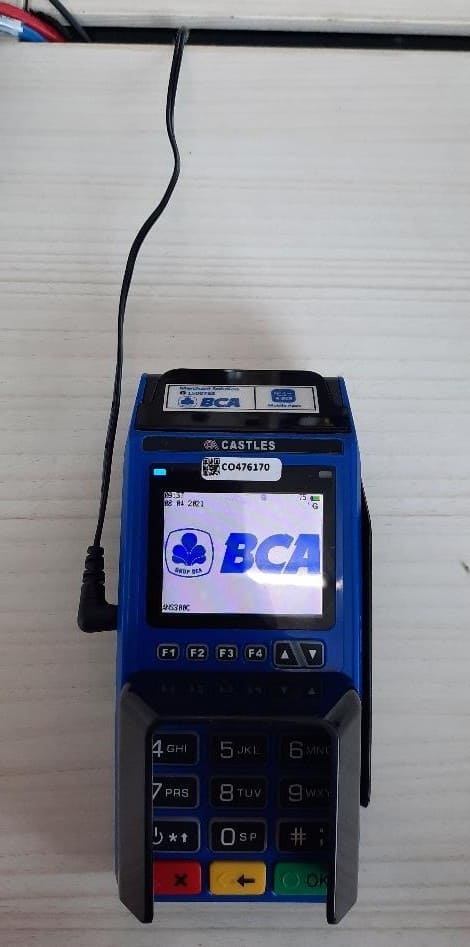
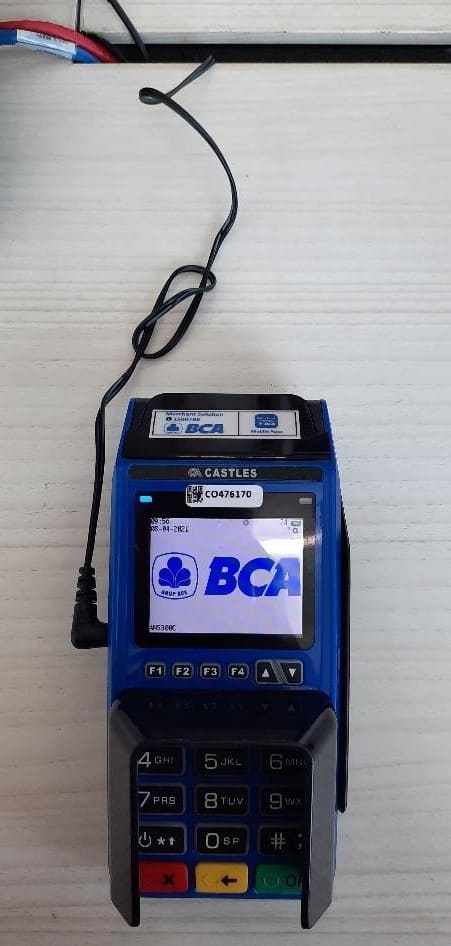
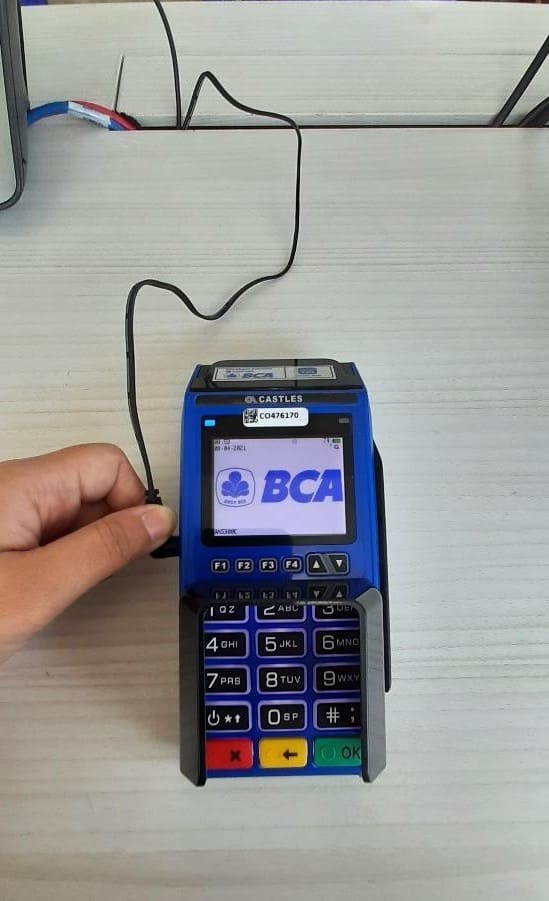
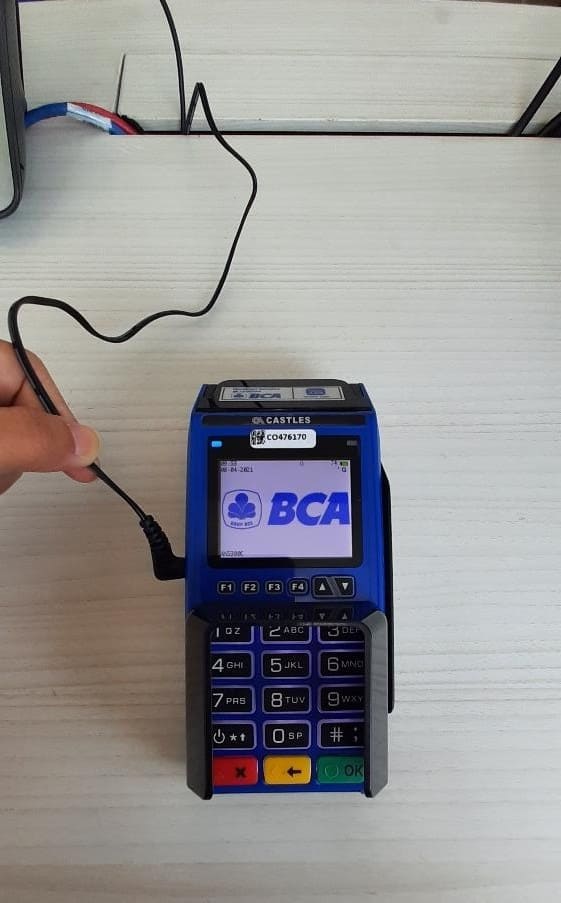
Here it is, BCA’s versatile EDC, “Si Biru”. For cashiers, merchants, or anyone who needs a tutorial
on how to use BCA EDC machine, check this out!
Which EDC machine do you own?
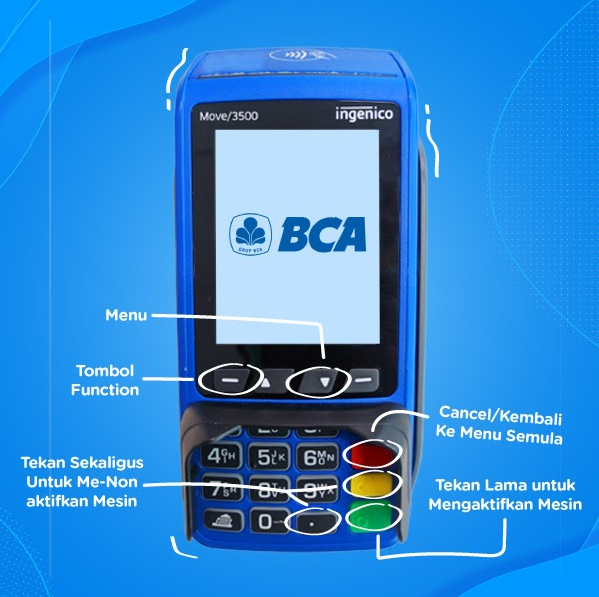
Ingenico
Move
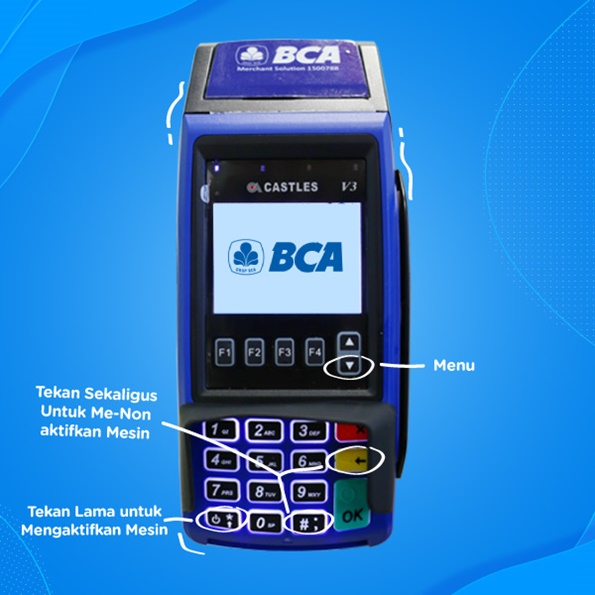
Castles
Processes Available on BCA EDC Machine
Let’s check out a simple tutorial on how to operate processes on BCA EDC.
Tutorial to Operate BCA EDC
To activate it, press the green button
The black button on the left to select NO
The black button on the right to select YES
To confirm, press the Enter green button on the bottom right corner
Press the red button to cancel
The yellow button for correcting the amount
Shortcuts using F buttonF0: network testF73: reprint receipt
Tutorial to do Transaction Test on BCA EDC
Press F button or select Function menu on EDC menu
Press 0
Select a section:
BCA (for credit card audit report)
Debit (for debit card audit report)
QR (for QR transaction audit report)
Press Enter according to the destined section, wait until the Test Transaction Success paper is
printed out.
Tutorial on Using Chip Cards on BCA EDC
Insert/Swipe card (chip card must be inserted)
EDC verifies card number, match the card physic with EDC screen
If correct, press YES
Enter an amount, press YES, EDC will verify the amount
EDC gives instruction to enter PIN “Y/N”
Both debit cards and credit cards now use PIN (Signature Not Required)
If a transaction is approved, EDC will print out a receipt.
Give the receipt to the cardholder, print another one to store by the cashier.
Tutorial on Using Non-Chip Cards on BCA EDC
Swipe card with magnetic slide on the inside part
Match the card number and press Enter
Enter the transaction amount
Enter PIN and press YES
Tutorial on Using Flazz on BCA EDC
Check balance by tapping the Flazz card on BCA reader
Top Up Flazz card with EDC, press Enter and select Flazz
Select top up and enter
Insert/swipe the fund source card to BCA EDC
Enter the top up nominal and press YES
Insert Flazz and check the balance again with BCA reader
Tutorial on debit card payment system on BCA EDC
Magnetic card: swipe as usual
Chip card with Mastercard, Visa, GPN logo: insert, select NSICCS.
When the card number appears, select YES
Enter the transaction amount
If debit or credit options appear, select debit
Ask the customer to enter PIN
Transaction is successful
Tutorial on Sakuku payment system on BCA EDC
Press the green button and select Sakuku
Select payment menu
Enter the payment amount and press the green button
The EDC machine will print a QR receipt
Ask the customer to scan the QR using Sakuku app
How to receive payment using QRIS on BCA EDC
Press Enter and select QR, and press payment
Enter the amount and press Enter
The EDC BCA Machine will show QR
Ask the customer to scan QR using a preferred payment app
Press Enter
How to Make Transactions Using Dynamic Currency Conversion (DCC)
Insert/Swipe credit card to the EDC machine
Input the transaction amount
Show the FX Quote sheet and offer cardholders to select a currency
Press the selected currency
Ask the cardholder to sign the payment receipt
How to Make Contactless Payment on BCA EDC
Make sure the card has a contactless logo
If not, continue transaction by inserting/swiping the card on EDC machine
Press the Green/Enter button and select Contactless menu
Select Sale menu, input the amount and press Enter button
After a Beep, ask the customer to tap card on the EDC machine
If the transaction amount is above 1 million rupiah, PIN or signature is required
Duplicate by last transaction
Press F button or select Function on the EDC machine
Press “73” and Enter
The previous transaction receipt will be reprinted
Duplicate by trace number
Press F button or select Function on the EDC machine
Press “76”
Input “trace number”
EDC will verify the amount, if correct press YES
Tutorial on Making Settlement
Press the green button for EDC menu
Select “Settlement”
Input password “3636”
Invoice will be printed
“Info EDC BCA” Application is Now Available!
Info EDC BCA is an application for cashiers, merchants, businesses, or anyone who wants to know information,
tutorial, and tips on using BCA’s Electronic Data Capture (EDC) machine through visualization using Augmented
Reality (AR) and 3D to make users feel like actually using a BCA EDC machine.
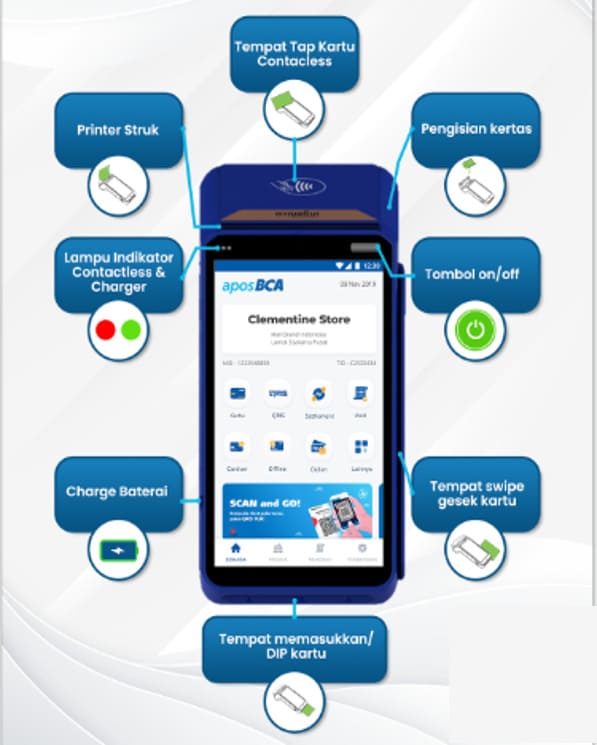
The application contains materials with Augmented Reality (AR) and 3D methods:

 Related articles on BCA EDC


