
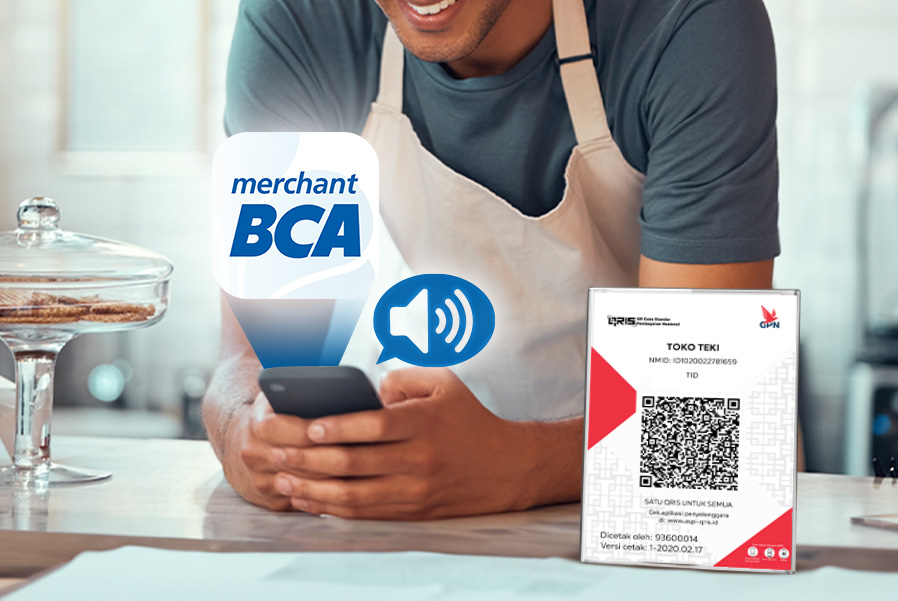
For business owners using the BCA Merchant app, monitoring static QRIS transactions is now easier with the voice notification feature.
You no longer need to worry about manually confirming successful transactions, as the app will notify you instantly, without needing to check the transaction history. Every successful transaction made by customers via static QRIS scan will trigger a voice notification from Merchant BCA app.
There are two types of notification sounds available in the BCA Merchant app, namely the BCA Ringtone (e.g., "Hanya BCA") and the Ringtone with transaction amount announcement (e.g., "Terima Seribu Rupiah").
The Voice Notification feature in the BCA Merchant app is highly beneficial for business owners because it:
- Simplifies the process of verifying the transaction amount paid by customers
- Improves transaction checking efficiency by allowing real-time confirmation without the need for manual transaction history checks or payment proof photos
Please note that the Text to Voice feature in the BCA Merchant app is only available on Android devices. To set it up, follow these steps:
How to Set Up the Notification Sound Type for at BCA Merchant App
- Open the Merchant BCA app
- Select the Account menu
- Select Notification Settings
- Make sure the notification toggle is active (blue)
- Select the sound type BCA Ringtone or Ringtone with Nominal Mention
How to Set Sound Notifications (Specific to Samsung Devices - English Version)
- Select apps
- Select samsung app settings
- Select bixby vision
- Select accessibility modes
- Go to the text-to-speech settings menu
- Click preferred engine
- Select speech recognition and synthesis from Google
- Change the language to Indonesian
- Click the gear icon next to the preferred engine text
- Select Install voice data
- Select Indonesian
- Select Voice II
- Ensure that access to BCA Merchant notifications is not blocked
How to Set Sound Notifications (Specific to Samsung Devices - Bahasa Version)
- Go to “pengaturan”
- Select “Aplikasi”
- Select “aplikasi Samsung”
- Select “bixby vision”
- Select and enable “Mode aksesibilitas”
- Go to “Pengaturan teks-hingga-bicara”
- Click preferred “Mesin”
- Select “Pengenalan dan Sintesis Ucapan dari Google”
- Change “Bahasa ke Indonesia”
- Click “tombol roda gigi” next to “Preferred text-to-speech engine”
- Select “install data suara”
- Select “Indonesia”
- Select “suara II”
- Ensure that access to “BCA Merchant notifications is not blocked”
Useful, isn't it? This feature certainly makes it easier for cashiers to ensure that transactions are successful. It also helps transactions with customers run more smoothly and efficiently, thanks to real-time voice notifications.
For more information, contact Merchant Solution at 1500788 or reach out to us via the haloBCA app.


